Implement Simulation Routines
This guide shows you how to implement the routine execution functionality that allows your connector to run simulations based on instructions from CDF.
For detailed information about simulation routines in CDF, see the Simulation Routines documentation.
Prerequisites
You should have completed:
- Create Your First Connector - Basic connector working
- COM Connection Deep Dive - Understanding COM automation
What you'll learn:
- What routines and routine revisions are
- The three-method pattern (SetInput, GetOutput, RunCommand)
- Implementing
RoutineImplementationBase - Mapping CDF instructions to simulator operations
Understanding Simulator Routines
A simulator routine is a folder that organizes different versions of simulator instructions. Each routine defines:
- Inputs - Values to set in the simulator before running
- Outputs - Values to read from the simulator after running
- Script - Step-by-step instructions for the simulation
Routine Revisions
Each routine revision is an immutable configuration that defines:
- Inputs - Constant values (STRING, DOUBLE, arrays) or time series references
- Outputs - Values to read and optionally save to time series
- Script - Ordered list of stages and steps for execution
Routine Revision Structure
Routine Revision
├── Inputs (e.g., Temperature = 25°C, Pressure = 2 bar)
├── Outputs (e.g., FlowRate, Efficiency)
└── Script (ordered stages with steps)
    ├── Stage 1: Set inputs
    │   ├── Step 1: Set Temperature → Sheet1, Cell A1
    │   └── Step 2: Set Pressure → Sheet1, Cell A2
    ├── Stage 2: Run calculation
    │   └── Step 1: Command: Calculate
    └── Stage 3: Get outputs
        ├── Step 1: Get FlowRate ← Sheet1, Cell B1
        └── Step 2: Get Efficiency ← Sheet1, Cell B2
The SDK handles reading configuration, providing inputs, orchestrating execution, and storing outputs. You implement how to set inputs, read outputs, and run commands in the simulator.
The Three-Method Pattern
All routine implementations follow the same pattern, regardless of integration type:
public abstract class RoutineImplementationBase
{
    // Set an input value in the simulator
    public abstract void SetInput(
        SimulatorRoutineRevisionInput inputConfig,
        SimulatorValueItem input,
        Dictionary<string, string> arguments,
        CancellationToken token);

    // Get an output value from the simulator
    public abstract SimulatorValueItem GetOutput(
        SimulatorRoutineRevisionOutput outputConfig,
        Dictionary<string, string> arguments,
        CancellationToken token);

    // Run a command in the simulator
    public abstract void RunCommand(
        Dictionary<string, string> arguments,
        CancellationToken token);
}
This pattern is universal - whether you're using COM, TCP, REST, or any other integration method.
Step 1: Create the Routine Class
Create NewSimRoutine.cs:
using Microsoft.Extensions.Logging;
using CogniteSdk.Alpha;
using Cognite.Simulator.Utils;

public class NewSimRoutine : RoutineImplementationBase
{
    private readonly dynamic _workbook;

    private readonly ILogger _logger;

    private const int XlCalculationManual = -4135;

    public NewSimRoutine(dynamic workbook, SimulatorRoutineRevision routineRevision, Dictionary<string, SimulatorValueItem> inputData, ILogger logger) : base(routineRevision, inputData, logger)
    {
        _workbook = workbook;
        _logger = logger;
    }

    public override void SetInput(
        SimulatorRoutineRevisionInput inputConfig,
        SimulatorValueItem input,
        Dictionary<string, string> arguments,
        CancellationToken token)
    {
        throw new NotImplementedException();
    }

    public override SimulatorValueItem GetOutput(
        SimulatorRoutineRevisionOutput outputConfig,
        Dictionary<string, string> arguments,
        CancellationToken token)
    {
        throw new NotImplementedException();
    }

    public override void RunCommand(
        Dictionary<string, string> arguments,
        CancellationToken token)
    {
    }
}
This class inherits from RoutineImplementationBase, receives the workbook (Excel COM object) in the constructor, relies on the base class for script orchestration, and implements the three required methods.
Step 2: Implement SetInput
The SetInput method writes values to the simulator.
Understanding SetInput Parameters
public override void SetInput(
    SimulatorRoutineRevisionInput inputConfig,  // Configuration from CDF
    SimulatorValueItem input,                   // Value to set
    Dictionary<string, string> arguments,       // Where to set it
    CancellationToken token)                    // Cancellation support
Implementation
public override void SetInput(
    SimulatorRoutineRevisionInput inputConfig,
    SimulatorValueItem input,
    Dictionary<string, string> arguments,
    CancellationToken token)
{
    ArgumentNullException.ThrowIfNull(input);
    ArgumentNullException.ThrowIfNull(arguments);

    // Extract sheet and cell reference from arguments
    var sheetName = arguments["sheet"];
    var cellReference = arguments["cell"];

    // Get the worksheet by name
    dynamic worksheet = _workbook.Worksheets(sheetName);
    dynamic cell = worksheet.Range(cellReference);

    // Set value based on type
    if (input.ValueType == SimulatorValueType.DOUBLE)
    {
        var rawValue = (input.Value as SimulatorValue.Double)?.Value ?? 0;
        cell.Value = rawValue;

        _logger.LogDebug($"Set {sheetName}!{cellReference} = {rawValue}");
    }
    else if (input.ValueType == SimulatorValueType.STRING)
    {
        var rawValue = (input.Value as SimulatorValue.String)?.Value;
        cell.Formula = rawValue;

        _logger.LogDebug($"Set {sheetName}!{cellReference} = '{rawValue}'");
    }
    else
    {
        throw new NotImplementedException($"{input.ValueType} not supported");
    }

    // Store reference for later use
    var simulatorObjectRef = new Dictionary<string, string>
    {
        { "sheet", sheetName },
        { "cell", cellReference }
    };
    input.SimulatorObjectReference = simulatorObjectRef;
}
Key concepts: arguments from the script step specify WHERE to set the value, value extraction casts SimulatorValue to concrete types (Double, String), type handling uses different setter methods for different value types, and SimulatorObjectReference stores the variable identifier.
Step 3: Implement GetOutput
The GetOutput method reads values from the simulator.
Understanding GetOutput Parameters
public override SimulatorValueItem GetOutput(
    SimulatorRoutineRevisionOutput outputConfig,  // Configuration from CDF
    Dictionary<string, string> arguments,         // Where to read from
    CancellationToken token)                      // Cancellation support
Returns: SimulatorValueItem containing the value read from the simulator.
Implementation
public override SimulatorValueItem GetOutput(
    SimulatorRoutineRevisionOutput outputConfig,
    Dictionary<string, string> arguments,
    CancellationToken token)
{
    ArgumentNullException.ThrowIfNull(outputConfig);
    ArgumentNullException.ThrowIfNull(arguments);

    // Extract sheet and cell reference
    var sheetName = arguments["sheet"];
    var cellReference = arguments["cell"];

    // Get the worksheet by name
    dynamic worksheet = _workbook.Worksheets(sheetName);
    dynamic cell = worksheet.Range(cellReference);

    // Read value based on expected type
    SimulatorValue value;

    if (outputConfig.ValueType == SimulatorValueType.DOUBLE)
    {
        var rawValue = cell.Value;

        if (rawValue == null)
        {
            _logger.LogWarning($"Cell {sheetName}!{cellReference} is empty, using default");
            rawValue = 0.0;
        }
        var doubleValue = Convert.ToDouble(rawValue);
        value = new SimulatorValue.Double(doubleValue);
        _logger.LogDebug($"Read {sheetName}!{cellReference} = {doubleValue}");
    }
    else if (outputConfig.ValueType == SimulatorValueType.STRING)
    {
        var rawValue = (string)cell.Text;
        value = new SimulatorValue.String(rawValue);
        _logger.LogDebug($"Read {sheetName}!{cellReference} = '{rawValue}'");
    }
    else
    {
        throw new NotImplementedException($"{outputConfig.ValueType} not supported");
    }

    // Create reference for where we read from
    var simulatorObjectRef = new Dictionary<string, string>
    {
        { "sheet", sheetName },
        { "cell", cellReference }
    };

    // Return the output item
    return new SimulatorValueItem
    {
        ValueType = outputConfig.ValueType,
        Value = value,
        ReferenceId = outputConfig.ReferenceId,
        SimulatorObjectReference = simulatorObjectRef,
        TimeseriesExternalId = outputConfig.SaveTimeseriesExternalId,
    };
}
Key concepts: arguments specify WHERE to read, type conversion casts from COM dynamic to expected type, SimulatorValueItem wraps the value in SDK type, and metadata preservation includes reference ID and timeseries mapping.
Handling Null/Missing Values
Excel cells can be empty. Handle gracefully:
var rawValue = cell.Value;

if (rawValue == null)
{
    _logger.LogWarning($"Cell {sheetName}!{cellReference} is empty, using default");
    rawValue = 0.0;  // Or throw exception if required
}

var doubleValue = Convert.ToDouble(rawValue);
value = new SimulatorValue.Double(doubleValue);
Step 4: Implement RunCommand
The RunCommand method executes simulator-specific operations like triggering calculations, running solvers, saving/loading state, or any action that doesn't involve setting/getting values (for Excel, usually not needed as formulas calculate automatically).
Implementation
public override void RunCommand(
    Dictionary<string, string> arguments,
    CancellationToken token)
{
    ArgumentNullException.ThrowIfNull(arguments);
    var command = arguments["command"];

    switch (command)
    {
        case "Pause":
            {
                _workbook.Application.Calculation = XlCalculationManual;
                _logger.LogInformation("Calculation mode set to manual");
                break;
            }
        case "Calculate":
            {
                _workbook.Application.Calculate();
                _logger.LogInformation("Calculation completed");
                break;
            }
        default:
            {
                throw new NotImplementedException($"Unsupported command: '{command}'");
            }
    }
}
Step 5: Update NewSimClient.RunSimulation
Now wire the routine into the NewSimClient:
public async Task<Dictionary<string, SimulatorValueItem>?> RunSimulation(DefaultModelFilestate modelState, SimulatorRoutineRevision routineRev, Dictionary<string, SimulatorValueItem> inputData, CancellationToken token)
{
    ArgumentNullException.ThrowIfNull(modelState);
    await semaphore.WaitAsync(token).ConfigureAwait(false);
    dynamic? workbook = null;
    try
    {
        Initialize();
        workbook = OpenBook(modelState.FilePath);

        var routine = new NewSimRoutine(workbook, routineRev, inputData, logger);
        return routine.PerformSimulation(token);
    }
    finally
    {
        if (workbook != null)
        {
            workbook.Close(false);
        }
        Shutdown();
        semaphore.Release();
    }
}
PerformSimulation iterates through script steps in order, calling your SetInput, GetOutput, or RunCommand methods based on step type, handling cancellation, and returning a dictionary of output values.
Step 6: Test with CDF
Now create a routine in CDF and test it.
Create an Excel Test Model
Create a simple Excel file (test-model.xlsx):
| A | B |
|---|---|
| 10 | =A1 * 2 |
Save it and upload to CDF.
Create a Routine and Revision
CDF -> Simulators -> Routines -> Create Routine
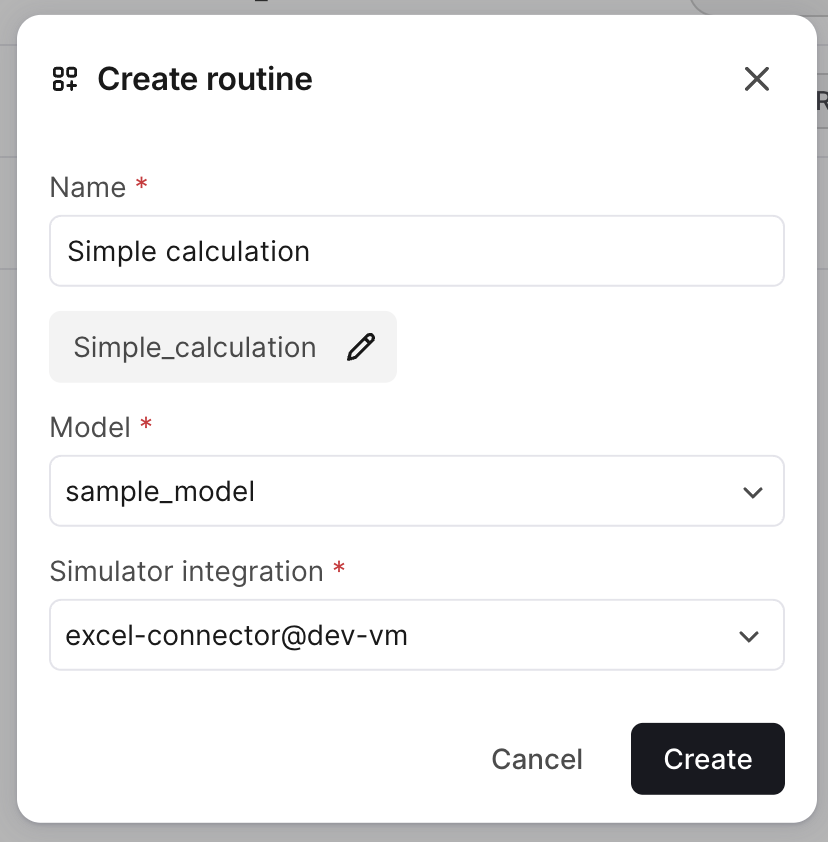
Setting inputs:
Set the first input (Sheet: Sheet1, Cell: A1, Value : 25) Set the second input (Sheet: Sheet1, Cell: B1, Value: "=A1 * 2") Set the output (Sheet: Sheet1, Cell: B1)
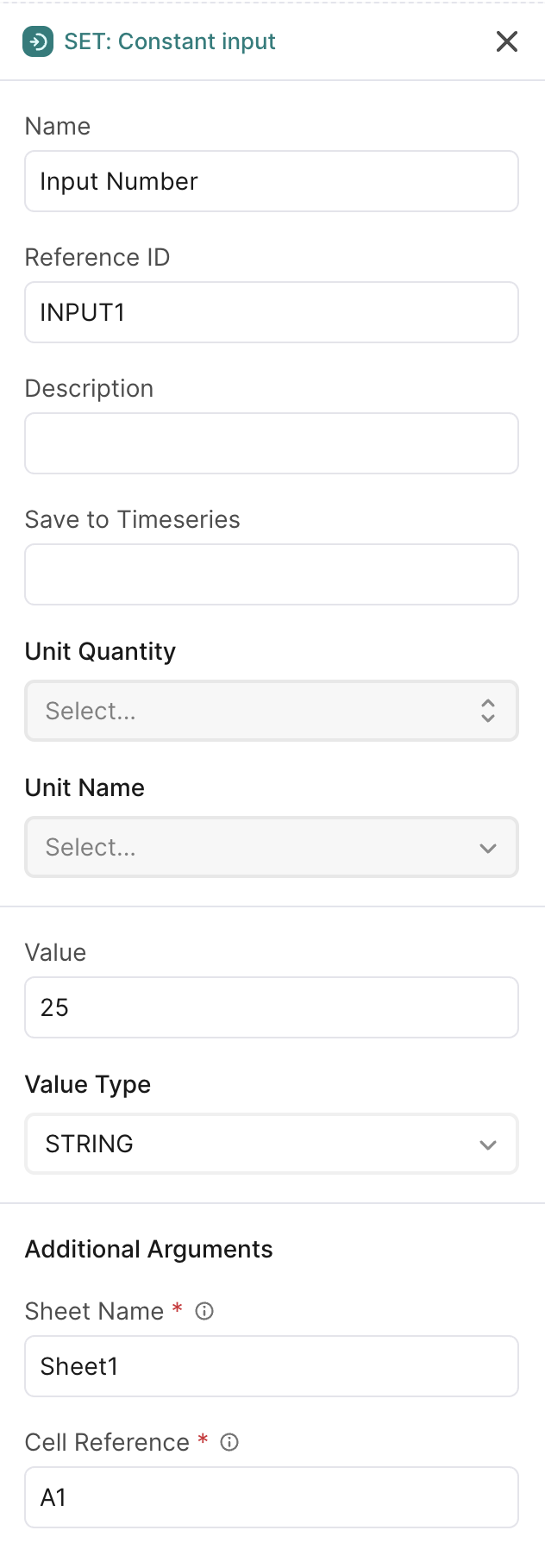
Routine in CDF

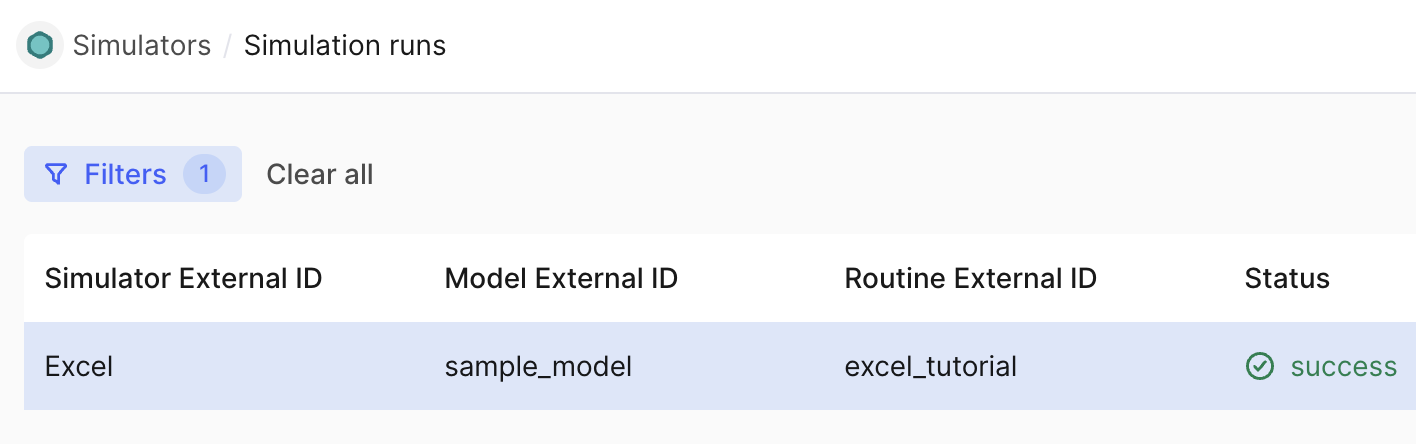
Run the Routine
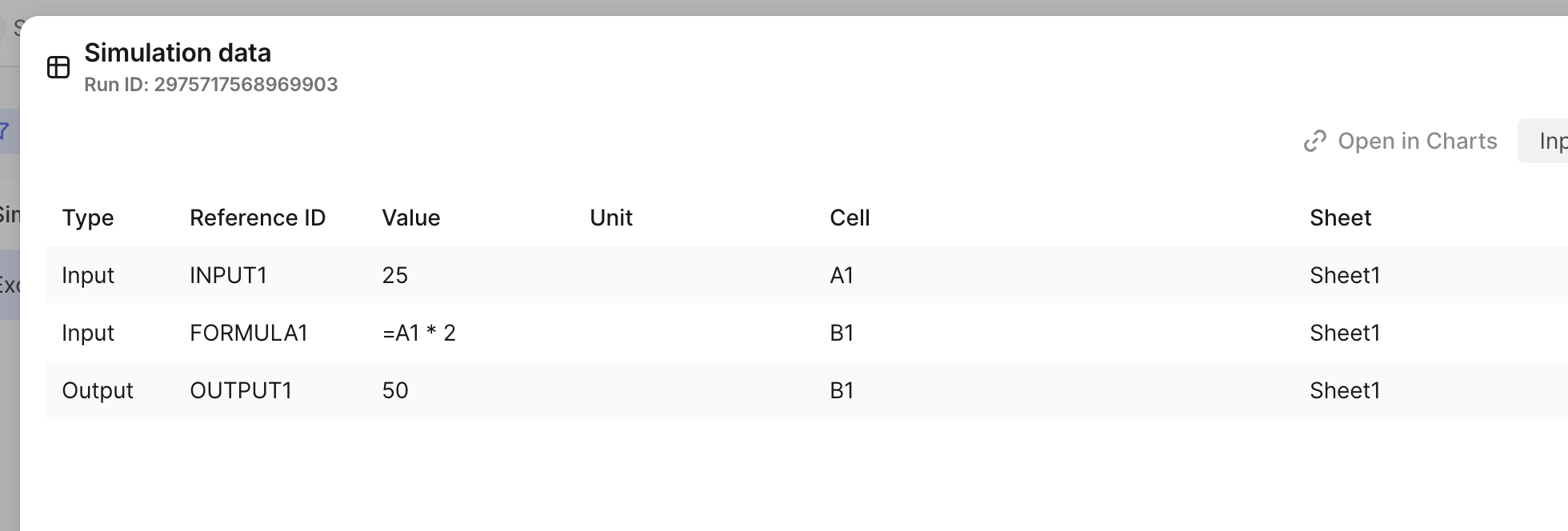
In the CDF UI, navigate to Simulators > Routines, find "Simple Calculation", click Run now, and view the results in the Run browser.
Expected result: Output "Result" = 50.0
Understanding Arguments
Arguments connect the routine script to your implementation.
Defining Arguments in SimulatorDefinition
Remember in SimulatorDefinition.cs:
StepFields = new List<SimulatorStepField>
{
    new SimulatorStepField
    {
        StepType = "get/set",
        Fields = new List<SimulatorStepFieldParam>
        {
            new SimulatorStepFieldParam
            {
                Name = "sheet",
                Label = "Sheet Name",
                Info = "Name of the worksheet (e.g., 'Sheet1')",
            },
            new SimulatorStepFieldParam
            {
                Name = "cell",
                Label = "Cell Reference",
                Info = "Excel cell reference (e.g., 'A1', 'B2', 'C3')",
            },
        },
    },
}
This defines what arguments the CDF API will ask for when creating routine steps.
Using Arguments in Script
When a user creates a step in CDF, they provide values for these arguments:
{
  "stepType": "Set",
  "arguments": {
    "referenceId": "INPUT1",
    "sheet": "Sheet1",
    "cell": "A5"
  }
}
Accessing Arguments in Code
public override void SetInput(
    SimulatorRoutineRevisionInput inputConfig,
    SimulatorValueItem input,
    Dictionary<string, string> arguments,
    CancellationToken token)
{
    // Arguments dictionary contains script-provided values
    var sheetName = arguments["sheet"];    // "Sheet1"
    var cellReference = arguments["cell"]; // "A5"

    // Use them to locate where to set the value
    dynamic worksheet = _workbook.Worksheets(sheetName);
    dynamic cell = worksheet.Range(cellReference);
    cell.Value = (input.Value as SimulatorValue.Double)?.Value;
}
Important: Argument names in
SimulatorDefinitionmust exactly match keys used in your code.
Next: Continue to Testing to learn how to test your connector.